5 Terminal Power Tools That Eliminated My Need for Graphical Apps
Think of the Linux terminal as a dusty old toolbox—only opened when something breaks or when you need to sudo your way to salvation. I used to treat it that way too, until I stumbled into the world of TUI (Terminal User Interface) applications. These are command-line tools that boast real, interactive interfaces—think text-based menus, panels, and even mouse support. I experimented with a handful, and while many didn’t stick, five of them became permanent fixtures in my workflow. In fact, they’ve completely replaced several graphical desktop applications I once relied on daily. This isn’t about hating GUIs; it’s about discovering that some tasks are faster, lighter, and more satisfying inside the cozy glow of a terminal emulator. Below are the five tools that turned my terminal from a troubleshooting cave into my everyday workspace.
1. Ranger – Your New File Manager
Ranger is a terminal-based file manager that renders file hierarchies with minimal overhead but maximum efficiency. Controlled entirely via keyboard shortcuts, it lets you navigate directories, preview files in real time, and perform bulk operations without ever touching a mouse. I used to rely on Nautilus or Dolphin for file management, but Ranger cut my navigation time in half. Its column view shows three levels of depth simultaneously, and built-in support for common actions like copy, move, rename, and delete are just a keystroke away. Plus, it can launch applications directly from the file manager—no need to drag and drop. The learning curve is gentle: within a week, you’ll wonder how you ever managed without it. For power users, it supports custom scripts and bulk renaming, making it a genuine upgrade over its graphical counterparts.
2. htop – A System Monitor That Actually Helps
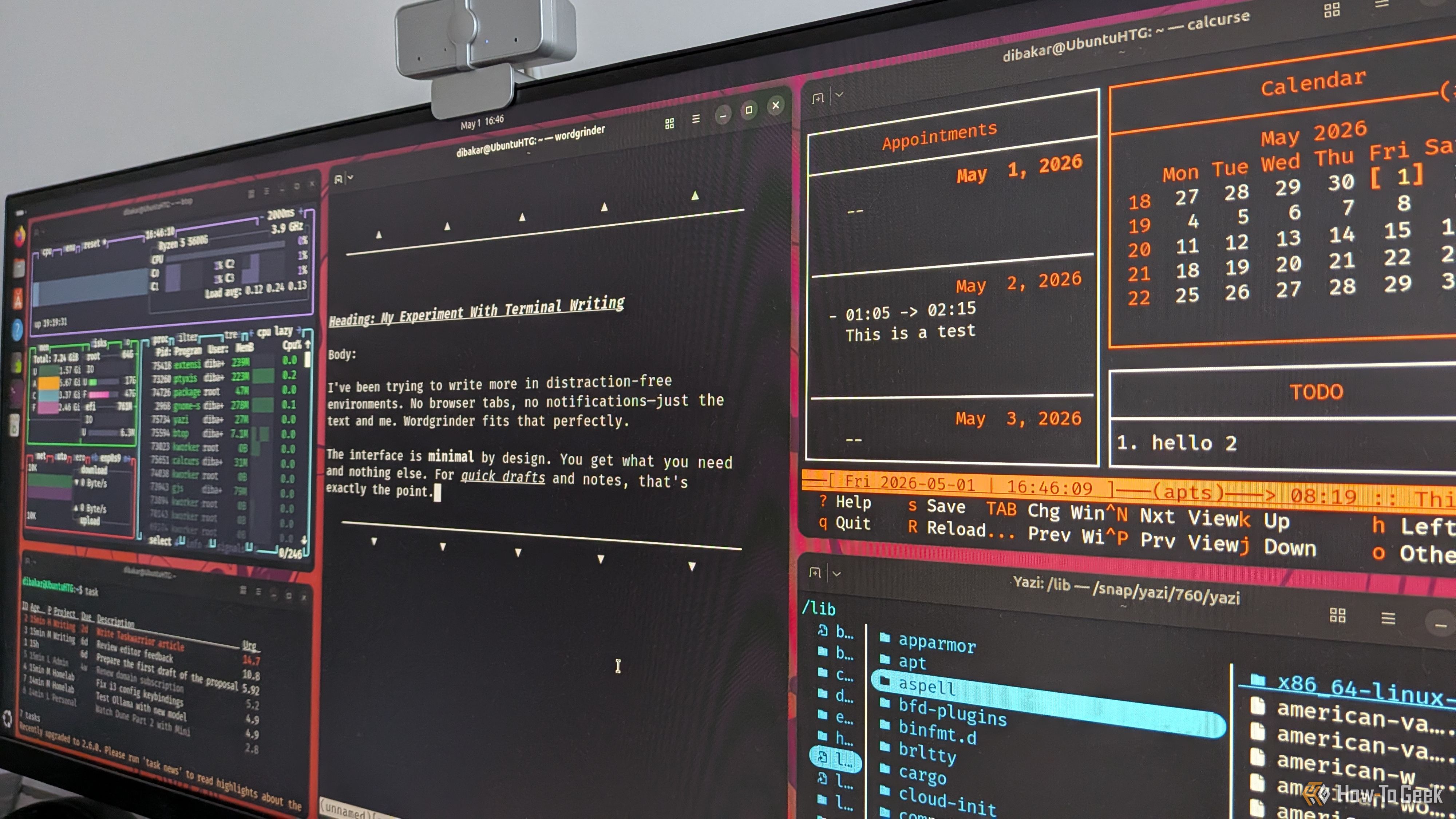
htop is a more intuitive, interactive version of the classic top command. It processes system metrics—CPU usage, memory consumption, running processes—in a color-coded, real-time display. Unlike your typical system monitor app (like GNOME System Monitor), htop feels snappy even on ancient hardware. You can kill or renicate processes with a few keystrokes, filter by user or command, and even scroll through the process list vertically and horizontally. I replaced my graphical system monitor entirely after discovering htop’s ability to show per-thread CPU usage and a tree view of process relationships. It’s also extremely customizable: you can add or remove columns, change colors, and set alert thresholds. Best of all, it runs over SSH, so you can monitor a headless server just as easily as your local machine. For anyone who cares about performance, htop is the definitive system resource tool.
3. cmus – A Music Player That Gets Out of Your Way
cmus is a lightweight, keyboard-driven music player that rips through your library without the bloat of graphical players like Rhythmbox or Spotify’s desktop app. It organizes music by artist, album, or genre, and supports playlists, queues, and equalizer settings—all from a clean two-panel interface. I was initially skeptical: could a terminal app really replace my beloved music client? After a week, I was hooked. cmus loads my 10,000-song library in seconds, uses negligible RAM, and never nags me about podcasts or updates. Navigation is entirely via keyboard shortcuts (arrows, vim-style j/k, or even remapped keys). It also handles various audio formats (FLAC, MP3, OGG) and can be controlled remotely via fifo or socket. The best part? It continues playing even if the terminal is closed (if run inside a tmux session), making it the perfect companion for long coding sessions.
4. neomutt – Email Without the Distractions
neomutt is a modern, feature-rich email client built on the classic Mutt foundation. It handles multiple accounts, filters spam with your favorite engine, and renders HTML emails in its own pager. I used Thunderbird for years, but its slow loading times and resource consumption drove me to look for alternatives. neomutt streamlined my workflow: I can manage hundreds of emails in seconds using advanced search, threading, and keyboard macros. It supports GPG encryption, message categorization (with a Maildir structure), and even integrates with notmuch for full-text indexing. The setup requires some configuration (you’ll need to define your SMTP/IMAP settings), but once done, it becomes a near-perfect inbox manager. neomutt also respects your privacy—no tracking, no ads, no telemetry. If you’re comfortable with mbox, Maildir, or a hybrid setup, this terminal client can kick your graphical mail client to the curb.
5. vim – The Text Editor That Replaced Everything
vim (or its modern fork neovim) started as a replacement for gedit but soon took over my note‑taking, coding, and document editing. It’s a highly modal text editor that achieves incredible editing speed through keyboard shortcuts and extensions. I used to bounce between Gedit, Geany, and even IDEs like VS Code for different tasks. Vim unified them. With plugins for file tree (NERDTree), syntax highlighting, linting, Git integration (fugitive), and even Markdown previews, it handles almost everything I throw at it. Yes, the learning curve is steep—you have to invest a few hours to get past the “vi mode confusion”—but the payoff is enormous. My editing speed tripled, and my reliance on graphical editors vanished. Vim runs over SSH, configures via a single text file, and works seamlessly with other terminal tools like tmux and Git. It’s the ultimate example of a TUI app that outshines its desktop counterparts.
These five tools have transformed my Linux experience from a desktop-centric workflow to a streamlined, keyboard-centric environment. They’re not for everyone—if you prefer pointing and clicking, stick with your GUI apps. But if you crave efficiency, simplicity, and a deeper connection to your operating system, give these terminal power tools a try. You might just find, as I did, that the command line is more than a repository of sudo recipes—it’s a workspace that puts you in control.