Achieving Interlaced 4K on a CRT Monitor: A Step-by-Step Guide
Overview
For enthusiasts who cherish the distinctive glow of cathode-ray tube (CRT) displays, the quest for higher resolutions never ceases. While modern LCD panels boast 4K and beyond, CRTs are often limited to resolutions like 1920×1440. However, one ingenious approach pushes past these limits by reviving an old television technique: interlacing. This guide details how to drive a CRT monitor at an interlaced resolution of 2880×2160—close to 4K—using a combination of modern hardware and legacy software.
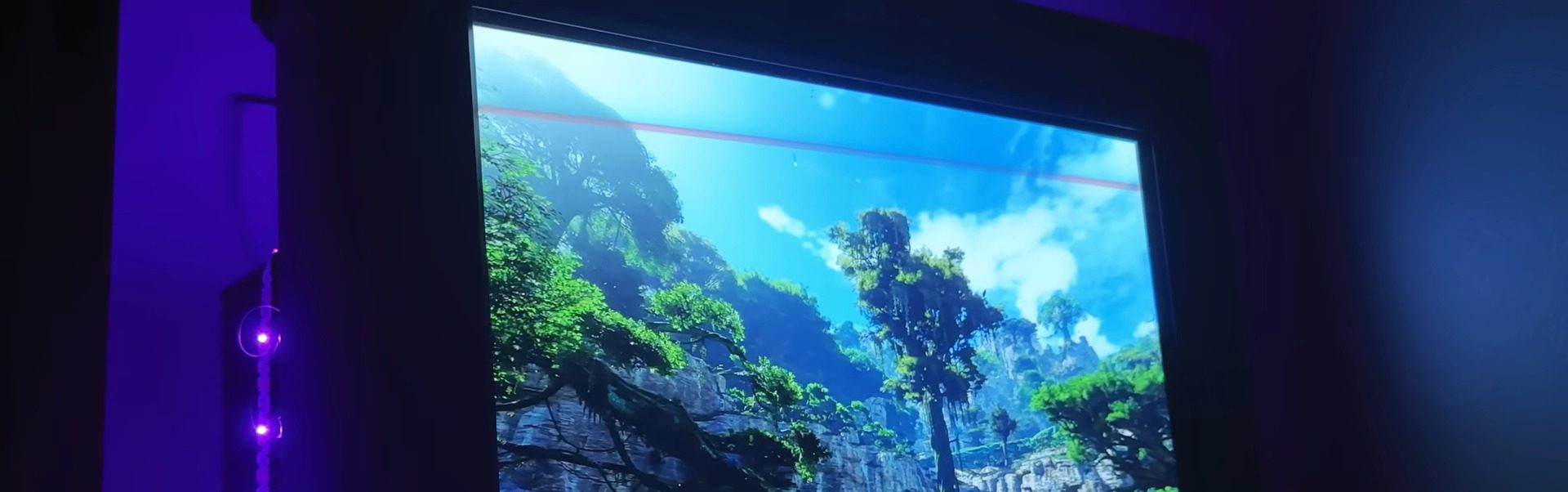
The technique was demonstrated by [Found Tech] on an IBM P275, one of the last high-end CRT monitors. Officially, its maximum resolution is 1920×1440 progressive scan. By switching to interlaced mode, the monitor can accept 2880×2160i—a quadrupling of pixel count. The challenge lies not in the monitor’s capabilities but in generating the interlaced signal, as modern NVIDIA and AMD GPUs have dropped support for interlaced output. Intel integrated GPUs, however, retain this feature, albeit with specific driver versions.
This guide assumes you own a compatible CRT monitor and are willing to experiment with hardware configurations. Jump to Prerequisites.
Prerequisites
Before attempting this project, ensure you have the following:
- A CRT monitor that supports high horizontal scan rates (e.g., IBM P275, Sony GDM-FW900, or similar). The monitor must be capable of at least 100 kHz horizontal scan rate to handle 2880×2160i at a usable refresh rate.
- A desktop computer with a discrete GPU (NVIDIA or AMD) for rendering modern games, and an Intel processor with integrated graphics (iGPU) that supports interlaced output. Compatible Intel chips include 4th through 7th generation Core series (e.g., Haswell, Skylake, Kaby Lake) along with older drivers (typically version 15.40 or earlier).
- Two video outputs: one from the discrete GPU (for rendering) and one from the iGPU (for display). The CRT must be connected to the iGPU’s output using a VGA or DVI-I to VGA adapter.
- Custom resolution creation tools (e.g., Custom Resolution Utility or CRU) or manual registry edits to define the interlaced mode.
- Patience and a willingness to troubleshoot driver conflicts.
Step-by-Step Instructions
Step 1: Verify Hardware Compatibility
Check that your CRT monitor can physically display the desired interlaced resolution. The IBM P275, for example, has a horizontal scan rate of 101 kHz and can lock onto an interlaced signal at 2880×2160 at roughly 48–60 Hz (field rate). Confirm that your monitor’s specs meet or exceed this.
Ensure your motherboard has a video output from the iGPU (usually VGA, DVI, or HDMI). If needed, enable the iGPU in BIOS (often labeled “iGPU Multi-Monitor” or “Always Enable”).
Step 2: Install the Correct Intel Graphics Driver
Download and install an older Intel graphics driver that supports interlaced modes. For Windows 10, drivers version 15.40.34.4624 or earlier are known to work. Newer drivers remove interlaced support. Uninstall any existing Intel driver first, then install the old driver in compatibility mode for Windows 7 if necessary.
Example driver file: Win64_15.40.34.4624.exeReboot after installation.
Step 3: Create the Custom Interlaced Resolution
Use a tool like Custom Resolution Utility (CRU) to define a new resolution. Launch CRU, select your CRT monitor from the dropdown, and click “Add…” under “Detailed Resolutions.” Enter:
- Horizontal pixels: 2880
- Vertical lines: 2160
- Refresh rate: 48 Hz (or 60 Hz if your monitor can handle it)
- Interlaced: Checked
- Timing: Standard CVT or manually adjusted to stay within monitor limits (e.g., horizontal front porch, sync width).
Alternatively, you can edit the registry directly under HKEY_LOCAL_MACHINE\SYSTEM\CurrentControlSet\Control\Video\{GUID}\0000\ and add a custom mode in DALNonStandardModesBCD (binary format), but CRU is simpler.
Click OK and restart the graphics driver (press Ctrl+Alt+Shift+R or use restart64.exe from CRU).
Step 4: Configure Display Output to Use iGPU
Connect your CRT monitor to the iGPU’s VGA port. Open Windows Display Settings and set the resolution to 2880×2160 interlaced. If the option doesn’t appear, run CRU’s “restart64.exe” again or restart the PC.
At this point, the desktop should render in interlaced 4:3 (though the monitor will be fed an interlaced signal; artifacts may be visible on text but less so on images).
Step 5: Route Game Rendering to the Discrete GPU
Since the Intel iGPU is too weak to run modern games at this resolution, you need to let the discrete GPU (e.g., NVIDIA RTX 3080) do the heavy lifting. Connect your discrete GPU to a second monitor or leave it without a display.
In Windows Graphics Settings (Settings > System > Display > Graphics), add your game executable and set it to “High performance” (discrete GPU). The game will render on the discrete GPU but output will be sent to the primary display (the CRT via iGPU) through the Windows compositor. This introduces a small latency but is functional.
Alternatively, use Optimus-like solutions if you have a laptop, but on desktop this manual assignment works.
Step 6: Optimize Game Settings
Set the game’s resolution to 2880×2160 (or 3840×2160 with black bars). Disable anti-aliasing as interlacing already produces a smoothing effect. Adjust refresh rate to match the interlaced field rate (e.g., 48 Hz). Expect lower frame rates due to the high pixel count; reduce detail settings as needed.
Common Mistakes
- Using the wrong Intel driver version: Newer drivers silently remove interlaced support. Always test with an older driver (15.40 series).
- Forgetting to enable iGPU in BIOS: If the iGPU is disabled, no video output will appear from the motherboard ports.
- Incorrect timing values: A custom resolution with a horizontal total too high will exceed the monitor’s scan rate and cause a blank screen. Use conservative timings and test with lower resolutions first (e.g., 1920×1080i).
- Assuming all CRTs accept interlaced 4K: Only high-end, late-model CRTs with exceptional horizontal bandwidth can synchronize to 2880×2160i. Check your monitor’s specifications.
- Ignoring interlaced artifacts: Fast-moving scenes may exhibit combing or flicker. Some users find this acceptable; others do not. Adjust the refresh rate higher if possible (60 Hz interlaced is smoother).
- Overheating the iGPU: Running dual GPUs simultaneously can increase system heat. Ensure adequate cooling.
Summary
By combining a compatible CRT monitor, an Intel iGPU with legacy drivers, and a discrete GPU for rendering, you can drive an interlaced 2880×2160 display—essentially 4K on a CRT. While the image is interlaced (not progressive) and in 4:3 aspect ratio, the result offers the unique visual character of phosphor glow with modern detail. This guide provides the essential steps to replicate [Found Tech]’s achievement, though success depends on hardware compatibility and careful driver management. For those willing to experiment, the rewards are a one-of-a-kind retro-futuristic viewing experience.