KDE Plasma: The Top Linux Desktop for Windows Migrants (After These Key Adjustments)
If you're moving from Windows 10 or 11 to Linux, KDE Plasma is the desktop environment that feels most familiar out of the box. But to make the transition truly seamless—and to avoid small annoyances—a few targeted tweaks can make a world of difference. Below, we answer the most common questions about customizing KDE Plasma for former Windows users, covering layout, menus, shortcuts, and performance.
Why is KDE Plasma the best Linux desktop for someone coming from Windows?
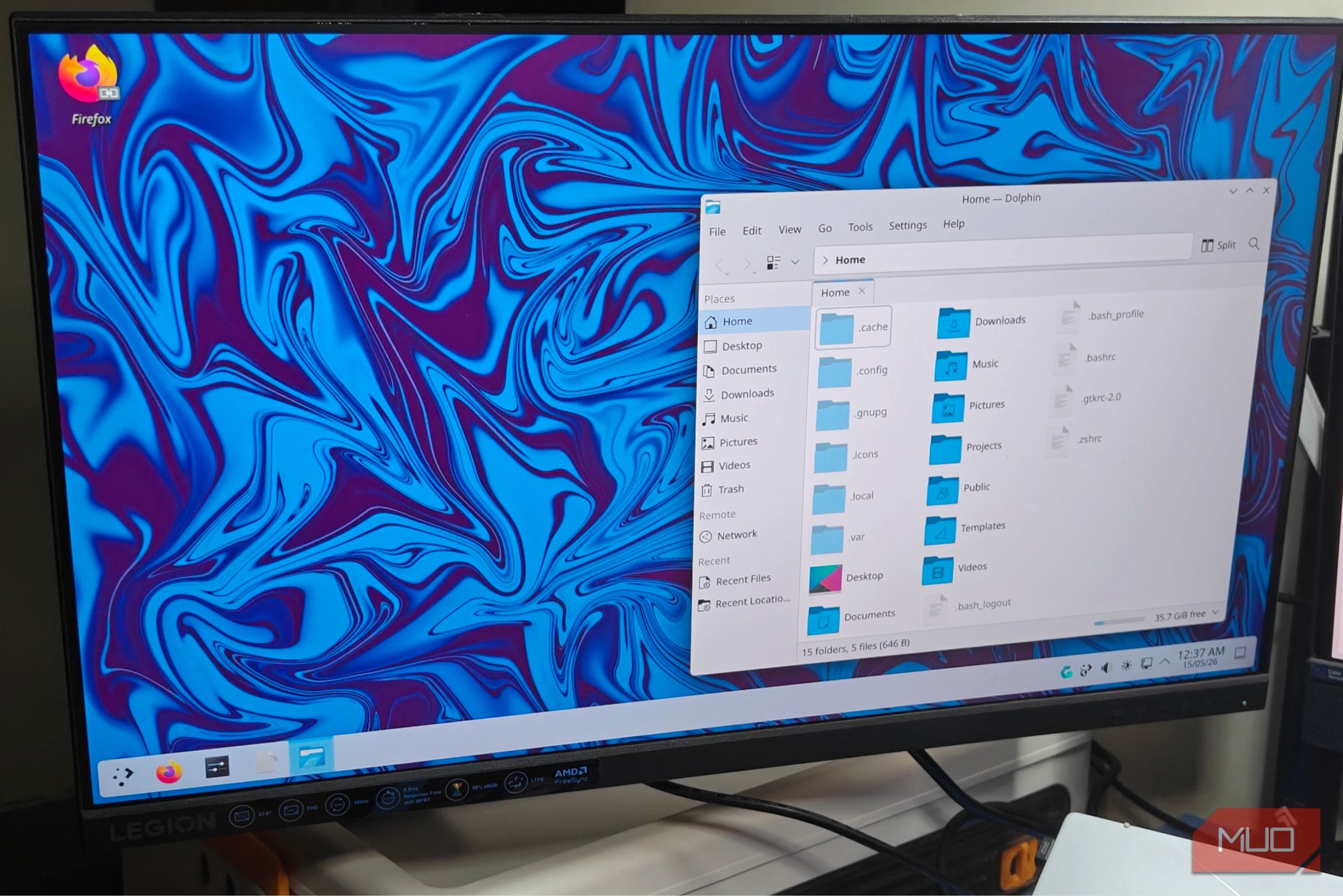
KDE Plasma closely mirrors the Windows interface out of the box. Its default layout includes a taskbar at the bottom, a start-menu-like application launcher, and system tray icons for network, battery, and volume. The panel can be moved and themed easily, and window decorations (minimize, maximize, close buttons) are on the top right, just like Windows. You can also right-click the desktop for a context menu, and drag-and-drop files feels identical. However, some details—like the default launcher looking slightly different from Windows 11’s centered Start—may require a few tweaks to feel exactly right.
What are the essential tweaks a Windows user should make in KDE Plasma?
The most important adjustments focus on the panel and application menu. First, change the panel layout to a more Windows-like style: right-click the panel > Edit Panel > set the panels to a single bottom bar. Then switch the default Kickoff menu (which shows a sidebar) to the simpler Application Menu style (search for “Application Menu” in widgets). Enable window snapping by going to System Settings > Window Management > KWin Scripts > enable “Window Snapping” (already on in recent versions). Finally, set the Alt+Tab switcher to a list instead of the default “Compact” so it resembles Windows. These steps take minutes and remove initial friction.
How can I make keyboard shortcuts match Windows habits?
KDE Plasma lets you remap most shortcuts. To mimic Windows, go to System Settings > Shortcuts. Under Global Shortcuts, set Alt+Tab to “Switch Window” (already default often), but you can change the format to a flat list. Also bind Super (Windows key) to open the Application Menu (under KMenu). For Super+E to open file manager (Dolphin), add a custom shortcut: Super+E, command dolphin. Other common Windows shortcuts like Ctrl+C/V already work. For Super+D (show desktop), KDE uses Ctrl+F12 by default, but you can reassign it under “Show Desktop.” These changes make the transition effortless.
How do I make the desktop look more like Windows 10 or 11?
Start by installing a Windows-like global theme. Open System Settings > Appearance > Global Themes and search for “Windows 11” or “Win10” themes (community ones like “Windows 11” or “ChromeOS” are available). Apply one. Then adjust the taskbar: right-click it > Edit Panel > change size to 48px for a standard Windows height. For the application menu, add the “Application Menu” widget instead of Kickoff. Finally, set the desktop wallpaper to a solid color or a landscape photo. If you want the Windows 11 centered start menu, you can add a spacer widget on the left of the panel to push icons to the center. These visual tweaks make the desktop look almost identical to Windows.
What should I tweak in the Dolphin file manager for a Windows-like experience?
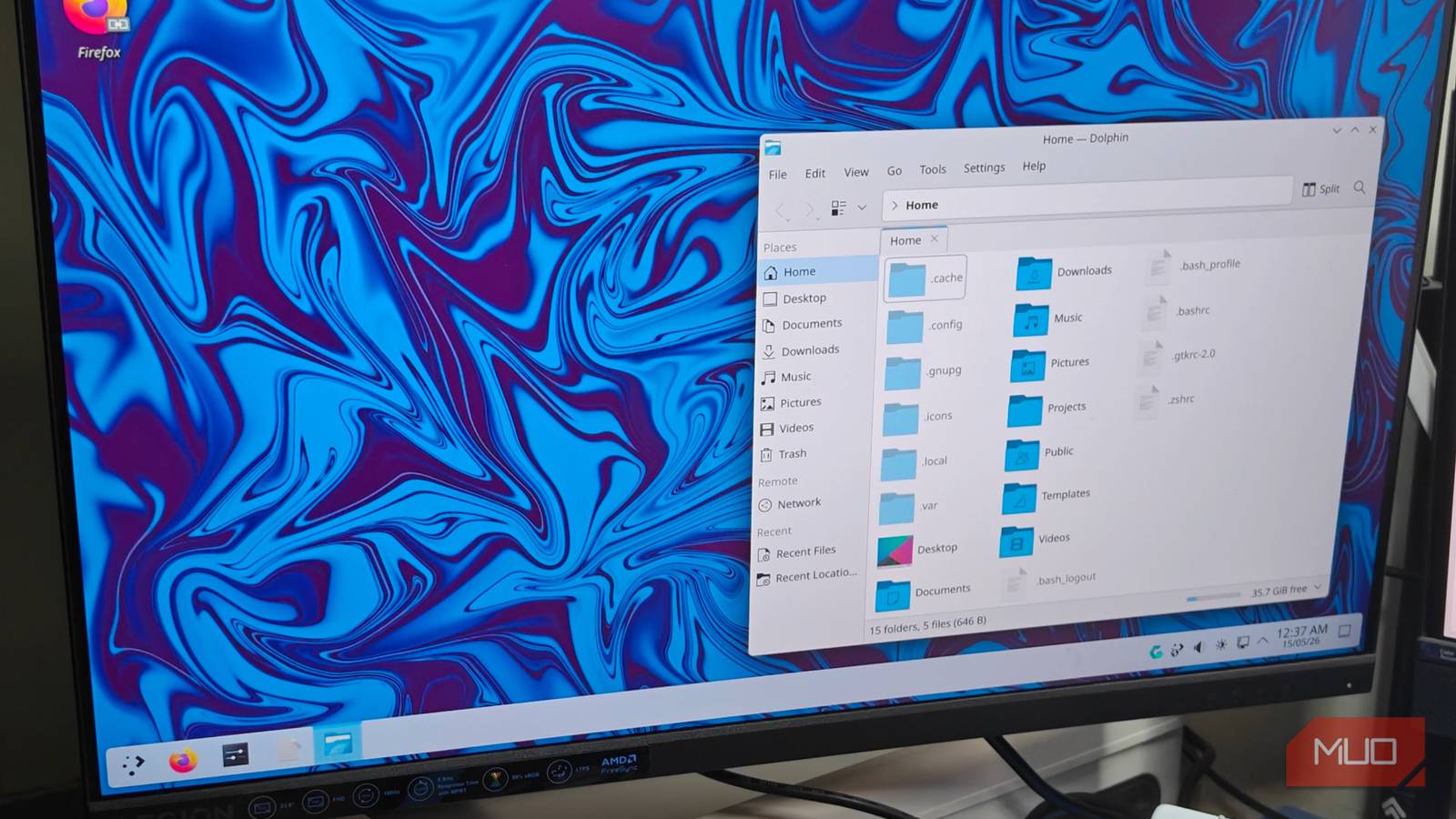
Dolphin is powerful but its default two-panel or large-zoom view can confuse newcomers. To make it behave like File Explorer: open Dolphin > Ctrl+. (period) to toggle hidden files. Then set the View mode to Details (Ctrl+2). Enable the navigation panel (F9) to see your home, Documents, and Downloads. Under Settings > Configure Dolphin > General, check “Open folders in a new window” if you prefer that behavior (Windows opens separate windows by default). Finally, set default sorting to “By Date” or “By Name” as you like. Optionally, add a “Places” panel on the left so your Documents folder is always one click away.
Are there performance tweaks that help KDE Plasma run faster on older hardware?
Yes, KDE Plasma is already lightweight, but you can accelerate it further. In System Settings > Display and Monitor > Compositor, set the rendering backend to XRender (instead of OpenGL) on older GPUs. Reduce animation speed: go to System Settings > Workspace Behavior > Desktop Effects > uncheck “Animate” or set speed to “Instant.” Disable unnecessary visual effects like “Blur” and “Transparency.” Also, under System Settings > Startup and Shutdown > Background Services, turn off services you never use (e.g., KDE Wallet, Print Manager). Finally, use a simpler desktop theme without heavy shadows or round corners. These steps make Plasma feel snappy even on a 5-year-old machine.
How do I install software and updates in KDE Plasma like on Windows?
Instead of downloading .exe files, KDE uses package managers. Use the Discover app (Application Launcher > Discover) to search and install programs from your distribution’s repositories. It’s similar to the Microsoft Store. For updates, either open Discover and click “Updates” or run sudo apt update && sudo apt upgrade in the terminal (if using Ubuntu/Debian). Many Windows apps have Linux alternatives—for example, use Wine or VirtualBox to run Windows-only software. You can also install Snap or Flatpak packages from Discover. The workflow is less about searching the web and more about using the built-in app store, which feels modern and safe.