A Step-by-Step Guide to Meta's Backup Key Vault Security Enhancements
Introduction
Meta has introduced several improvements to strengthen end-to-end encrypted backups for WhatsApp and Messenger. The cornerstone of this effort is the HSM-based Backup Key Vault, which uses tamper-resistant hardware security modules (HSMs) to protect recovery codes and ensure that even Meta cannot access your backed-up message history. Late last year, the company made it easier to encrypt backups using passkeys. Now, two additional updates—over-the-air fleet key distribution for Messenger and a commitment to publishing evidence of secure fleet deployments—further reinforce the underlying infrastructure. This step-by-step guide will walk you through how these components work and how you can verify the security of your encrypted backups.
What You Need
- A basic understanding of end-to-end encryption concepts
- Access to the WhatsApp or Messenger app (optional, for reference)
- An internet browser to check Meta's security blog
- Willingness to review technical documentation (the whitepaper)
- No special tools or software required
Step 1: Understand the HSM-Based Backup Key Vault
The HSM-based Backup Key Vault is the foundation for encrypted backups. It allows you to protect your message history with a recovery code that is stored in tamper-resistant HSMs. These HSMs are deployed across multiple data centers in a geographically distributed fleet, using a majority-consensus replication scheme for resilience. The key property is that neither Meta, cloud storage providers, nor any third party can access the recovery code. Only you can decrypt your backup using that code.
To benefit from this system, ensure you have set up a recovery code or passkey in your app settings. For WhatsApp, go to Settings > Chats > Chat Backup > End-to-End Encrypted Backup. For Messenger, the option is under Settings > Privacy & Safety > End-to-End Encrypted Backups.
Step 2: Enable and Use Passkeys for Easier Encryption
Late last year, Meta introduced passkey support for end-to-end encrypted backups. A passkey lets you use your device's biometric authentication (e.g., fingerprint or face ID) instead of a traditional recovery code. This simplifies the encryption process while maintaining the same level of security. To enable passkeys, look for the option in the backup settings described in Step 1. Once enabled, your device will automatically generate and store the passkey locally, and it will be backed up securely to your iCloud or Google account using the same HSM-based vault.
Step 3: Verify Over-the-Air Fleet Key Distribution (Messenger)
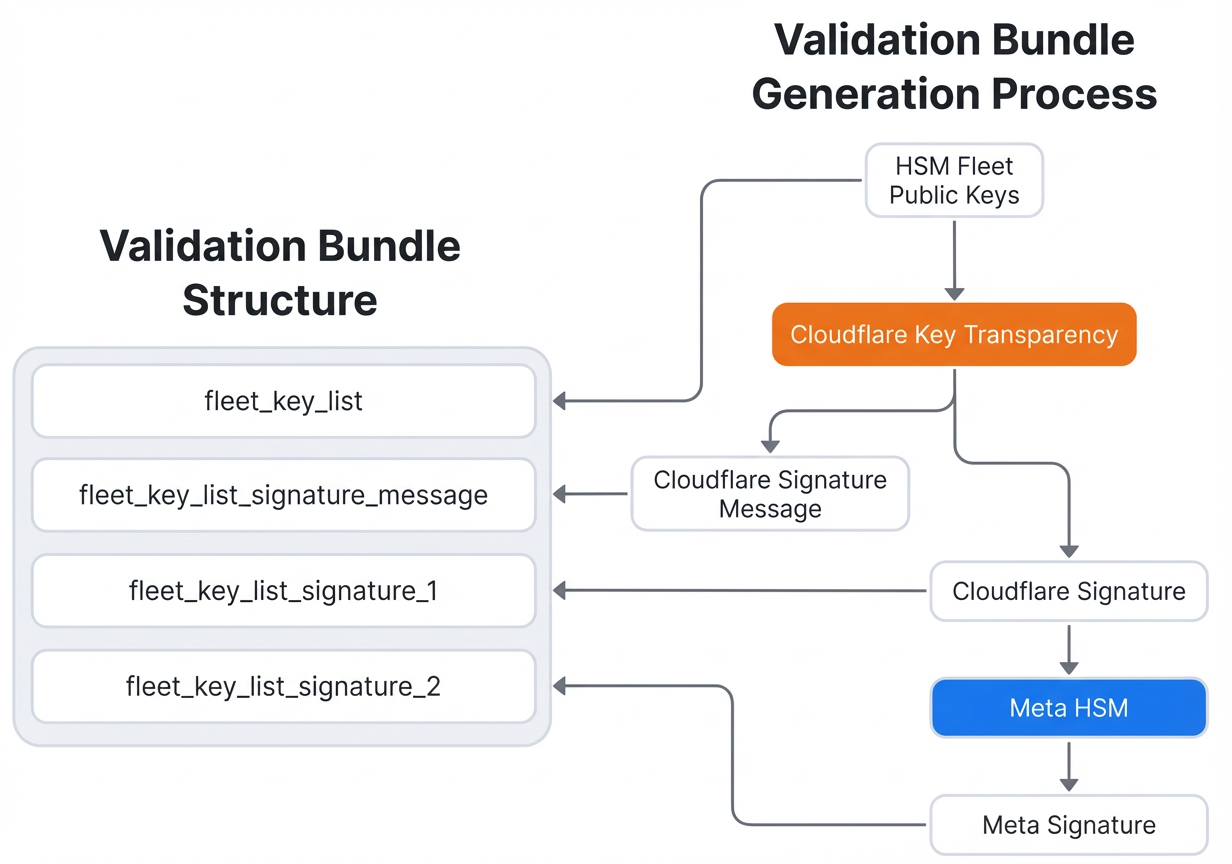
In WhatsApp, fleet public keys are hardcoded into the application. For Messenger, Meta built a mechanism to distribute these keys over the air without requiring an app update. This is important for rolling out new HSM fleets. Here’s how the verification works:
- When your Messenger client establishes a session with a new HSM fleet, it receives a validation bundle containing the fleet’s public keys.
- This bundle is signed by Cloudflare and then counter-signed by Meta, providing independent cryptographic proof of authenticity.
- Cloudflare also maintains an audit log of every validation bundle, giving you an additional layer of transparency.
You can trust that the fleet keys are legitimate because the signatures are verifiable. The full validation protocol is described in Meta’s whitepaper (see Step 5). To stay informed, keep your Messenger app updated to the latest version.
Step 4: Verify Transparent Fleet Deployment Evidence
Meta now publishes evidence of the secure deployment of each new HSM fleet on its engineering blog. New fleets are deployed infrequently (typically every few years). When a new fleet goes live, Meta will share details that allow anyone to verify the deployment was performed securely. To check this:
- Visit the official Meta Engineering blog page dedicated to backup security (see the link in the whitepaper).
- Look for posts related to HSM fleet deployments—they will include cryptographic proofs and operational details.
- Follow the steps outlined in the Audit section of the whitepaper to independently verify that each new fleet meets the security requirements.
This transparency demonstrates that the system operates as designed and that Meta cannot access your encrypted backups.
Step 5: Read the Full Whitepaper
For the complete technical specification of the HSM-based Backup Key Vault, including all cryptographic protocols and audit procedures, read the whitepaper titled “Security of End-To-End Encrypted Backups”. It provides in-depth explanations of the fleet key distribution, HSM deployment, and verification steps. The whitepaper is available on Meta’s security research page. Reviewing it will give you a thorough understanding of how your backups are protected.
Tips for Maximum Security
- Always keep your recovery code or passkey private. Never share it with anyone, and store backups in a secure location like a password manager.
- Enable passkeys if your device supports them. They provide a convenient and strong authentication method without the risk of losing a recovery code.
- Keep your apps updated. Both WhatsApp and Messenger regularly receive security patches and new features. Enable automatic updates to stay protected.
- Follow Meta’s transparency blog. By checking the blog occasionally, you can verify new fleet deployments and stay informed about any changes to the backup infrastructure.
- Use the audit guide in the whitepaper. If you are technically inclined, performing your own verification of a new fleet deployment adds an extra layer of confidence.
By following these steps, you can understand and verify how Meta is strengthening end-to-end encrypted backups for WhatsApp and Messenger. The combination of HSMs, over-the-air key distribution, and transparent deployments ensures that your message history remains private and secure.